Sandbox mode and test data
What sandbox is, how to get a test API key, and how to wipe test data when you are done.
Sandbox is a second set of records inside the same workspace: test accounts, contacts, tickets, and everything else, kept apart from the real ones. It is a view you switch on, not a separate login or a separate workspace. Users, roles, settings, and API keys are shared; business records are not.
Before you start: anyone can switch sandbox mode from the user menu. Clearing sandbox data needs Manage company settings.
Switch it on
Open the user menu at the top right and turn on Sandbox Mode. A banner appears on every page: "Sandbox Mode — Test data only. Changes here do not affect production." Everything you create while it is on is test data, and the real records disappear from view until you switch back.
The same switch is under Settings → Sandbox.
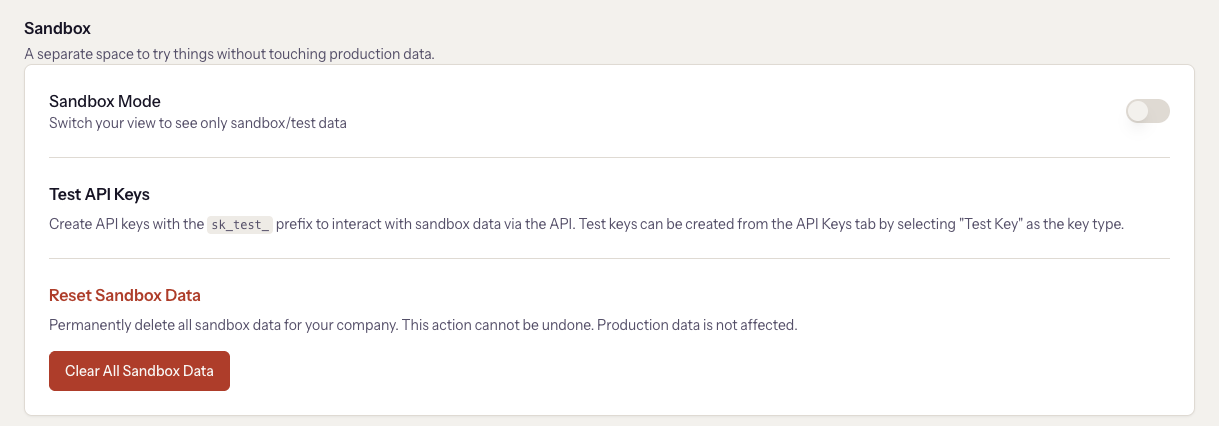
Get a test API key
API keys come in two kinds. A key starting sk_test_ reads and writes
sandbox data; sk_live_ reads and writes real data. A key is bound to one
side for life, and there is no per-request override.
The kind is decided by sandbox mode, not by a setting on the key
Turn Sandbox Mode on first, then go to Settings → API Keys and click
Generate Key. The key you get is sk_test_. Generate one with sandbox
off and it is sk_live_. There is no key-type option in the dialog; the
mode switch at the moment you generate is what decides.
The developer guides cover the rest: Test and live data and Authentication.
Chat widgets and the launcher
A chat widget is either a sandbox widget or a live one, decided by which mode was on when it was created. Conversations from it, and the contacts it creates, land on that side. The floating launcher always writes live data.
Clear it out
Settings → Sandbox → Clear All Sandbox Data deletes every test account, contact, opportunity, lead, ticket, task, invoice, quote, and document. It asks you to confirm, it cannot be undone, and it does not touch real data. Do this when a demo or an integration test is finished so the next one starts clean.
When it goes wrong
- A record you just created is missing. You are viewing the other side. Check the banner and the user menu.
- The API returns 404 for a record you can see. The key is bound to the
other side. Sandbox records are only visible to
sk_test_keys. - You generated a live key by mistake. Deactivate it under Settings → API Keys, switch sandbox on, and generate again.
Next
The Use track, for the everyday work now that setup is complete.