Turn on AI
Every AI switch in one place, what each one controls, and the order to turn them on so the assistant answers well and stays quiet when it should.
ClientSphere's AI does four things: drafts or sends replies to inbound email, answers visitors in the chat widget, coaches your team in the assistant panel, and writes a daily insights briefing. They share one master switch and one body of knowledge, but each has its own toggle, and they live in different places. This page maps them all.
Before you start: a role with Manage AI agent. The AI answers from your knowledge base and imported documents, so it is only as good as what you have published; see Publish your knowledge base.
The switches
| Switch | Where | What it controls |
|---|---|---|
| Enable AI Agent | Settings → AI Agent → Support AI | The master switch. Off means the AI never auto-responds anywhere. |
| Enable AI Auto-Respond | Settings → Support Widgets → each channel → AI Assistant | Whether the AI answers visitors in that widget |
| AI Auto-Respond and Response Mode | Settings → Support → AI Settings, per channel; the same under Sales | Whether the AI handles inbound email, and whether it drafts or sends |
| Only respond outside business hours | Settings → AI Agent → Support AI | Limits widget auto-replies to when the team is offline |
| Enable daily insights | Settings → AI Agent → Insights | The dashboard briefing; needs the master switch on too |
The assistant panel your team opens from the header does not have a switch; it is available to anyone whose role includes it.
1. Give it context
Settings → AI Agent → Context has five free-text fields the assistant reads on every request: Products & Services, Target Audience / ICP, Sales Playbook, Support Policies, and Additional Context. It already knows your company name, industry, and pipeline stages. Fill in the first and fourth at minimum: what you sell and what you promise. Click Save.
2. Give it documents
Settings → AI Agent → Documents imports public web pages so the AI can cite them. Click Import URL, paste the page, and tick Crawl linked pages on same domain (up to 200 pages) to pull in a whole docs site. The row shows Processing until it is indexed, then Ready with the page and chunk counts. Re-fetch all pages and discover new ones on a crawled document picks up changes later.
Published knowledge base articles are used automatically; nothing to import there.
3. Turn on the master switch and set the behaviour
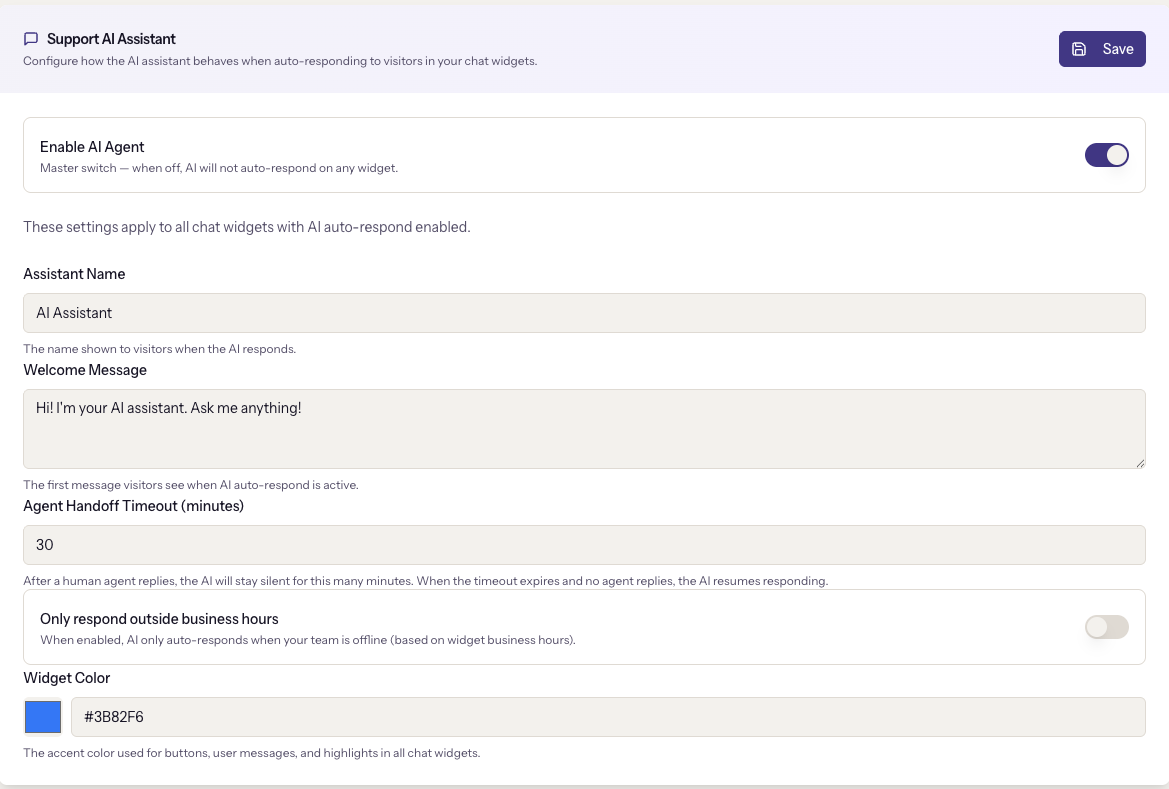
Settings → AI Agent → Support AI:
- Enable AI Agent. Everything below is greyed out until this is on.
- Assistant Name and Welcome Message, shown to visitors in every widget.
- Agent Handoff Timeout (minutes). After a human agent replies in a conversation, the AI stays silent for this long. If the timeout expires and no agent has replied again, the AI resumes. Thirty minutes is the default; set it to the longest a customer should wait before the AI steps back in.
- Only respond outside business hours. When on, the AI answers visitors only when your team is offline according to working hours. That needs working hours to exist; see Working hours, SLAs and assignment.
Click Save.
4. Turn it on per channel
- Chat widgets: Settings → Support Widgets, edit the channel, AI Assistant tab, Enable AI Auto-Respond.
- Support email: Settings → Support → AI Settings, pick the channel, turn on AI Auto-Respond, and choose the Response Mode: Draft for review puts a draft in the ticket for an agent to send or discard; Auto-send immediately replies on its own.
- Sales email: the same under Settings → Sales → AI Settings.
Start every channel on Draft for review. Read a week of drafts. Switch to auto-send only where the drafts were right without edits, which is usually the support channel with a mature knowledge base, and rarely sales.
5. Insights, optional
Settings → AI Agent → Insights: Enable daily insights, a Schedule hour (UTC), a Coverage period (days), optional Customer sentiment analysis, which uses more tokens, and the categories to cover. The card notes that it needs the master switch on as well. Run now generates a one-off briefing, at most three a day, so you do not have to wait for tomorrow's run to see it.
Watch the usage
Settings → AI Agent → Usage shows messages and tokens this month, a daily chart, and the top users. Check it after the first week with auto-send on.
When it goes wrong
- Nothing answers anywhere. The master switch is off. It overrides every per-channel toggle.
- The widget answers during the day when you wanted it quiet. Only respond outside business hours is off, or no working hours are set.
- The AI keeps talking over an agent. Raise the Agent Handoff Timeout.
- Answers are generic. Context fields are empty, or nothing is published in the knowledge base. Documents still Processing are not used yet.
- Insights are on but the dashboard is empty. The next scheduled run has not happened. Use Run now.
Next
Sandbox mode and test data, for trying any of this without touching real records.