Create your workspace and invite your team
Sign up, create the company, invite people with a role, and understand what a role shows and hides.
A workspace is a company in ClientSphere. Everything, from contacts to sending domains, belongs to one. A person can belong to several and switches between them from the user menu.
Sign up and create the company
- Go to
/authand click Create an account. First name, last name, work email, and a password of eight or more characters. - You land on Select a Company. Click Create New Company and fill in the name, industry, and company size. All three are required.
There is no way into the product without a company. If you ever see the company picker instead of the dashboard, that is why.
Later, under Settings → Company, add the details that show up elsewhere: the logo and icon, the website, the timezone, and the address that goes on invoices.
Invite your team
Under Settings → Users, click Add User. First name, last name, email, and a Role. The person receives an invitation email and sets a password on the invitation page, which shows them the company and the role they were given.
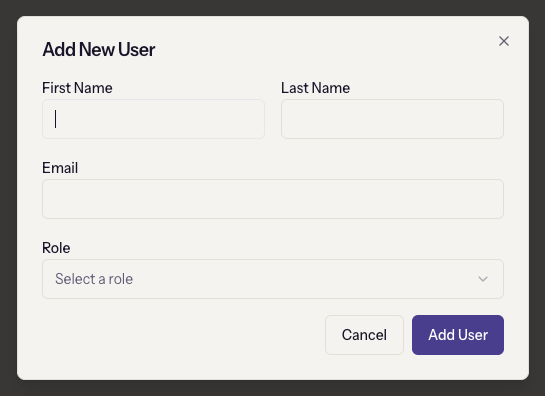
Two things about users:
- Email cannot be changed after the account exists. Get it right in the invitation.
- Deactivate, don't delete. Deactivating removes access and keeps everything the person did. The Inactive Users tab lists them, and they can be reactivated from Edit User.
You cannot deactivate yourself.
Roles decide what people see
Every menu group in the sidebar is filtered by permission, and a group with nothing visible in it disappears entirely. A rep without Send broadcasts, Manage contact lists, or Manage email automations does not see a greyed-out Email menu; they see no Email menu at all. When someone says a feature "disappeared", check their role first.
Settings → Roles & Permissions ships with five roles: Owner, Admin, Manager, Sales Rep, and Support Agent. Create your own with Create New Role, pick a Quick Template to start from one of the five, then adjust the checkboxes. The matrix is grouped by area: Contact Management, Ticket Management, Broadcasts, API, and so on, with a one-line description under each permission.
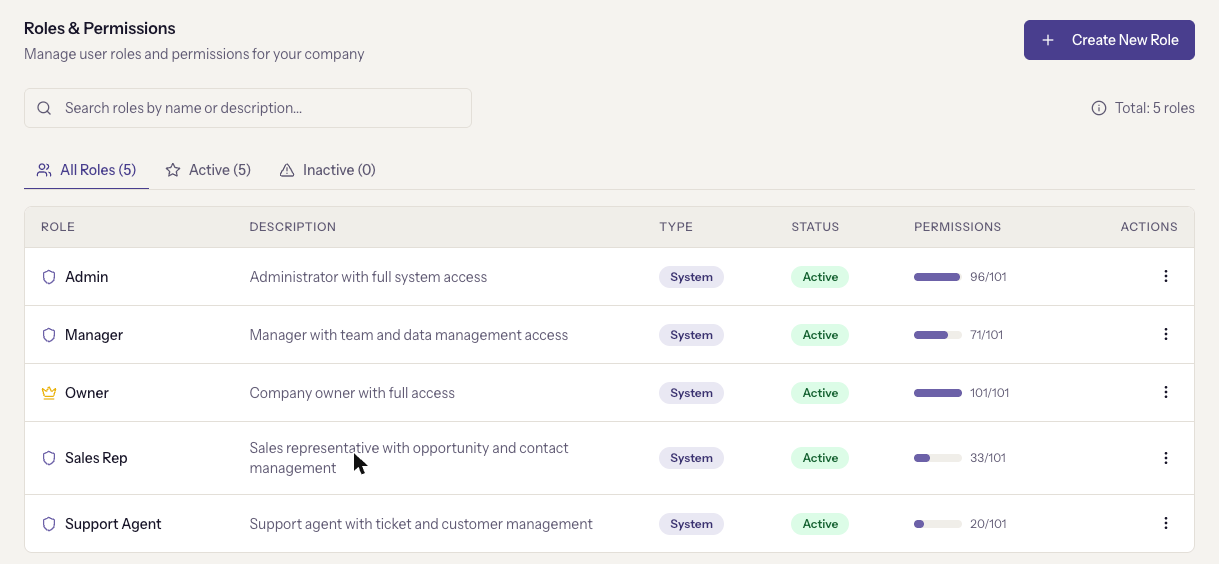
- The Owner role cannot be edited or deleted.
- System roles cannot be deleted. Custom roles can, but deleting one affects every user assigned to it. Deactivate it instead if you are not sure.
- Permissions on an API key are separate from roles. See API keys.
Switching companies and sandbox mode
The user menu at the top right has Switch Company and a Sandbox Mode switch. Sandbox is a view of test data inside the same workspace, not a separate login: while it is on, a banner says "Sandbox Mode — Test data only. Changes here do not affect production." and everything you create is test data. Turn it off to return to real records.
Next
Set up email sending. Nothing that sends email works until a domain is verified and a sending address exists.