Set up email sending
Verify a domain, publish its DNS records, and create a sending address. Broadcasts, sequences and transactional email all wait on this.
Every email ClientSphere sends on your behalf, from a broadcast to a receipt, goes out from a sending address on a verified domain. Until both exist, the Broadcasts and Transactional pages show "Sending isn't set up yet." This page takes you from nothing to a working address.
Before you start:
- A role with Manage integrations. Without it you see the notice but not the Set up sending button.
- Access to the DNS for your domain, at your registrar or DNS host. You will publish a handful of records.
- Fifteen minutes, most of it waiting for DNS.
Everything lives under Settings → Email sending.
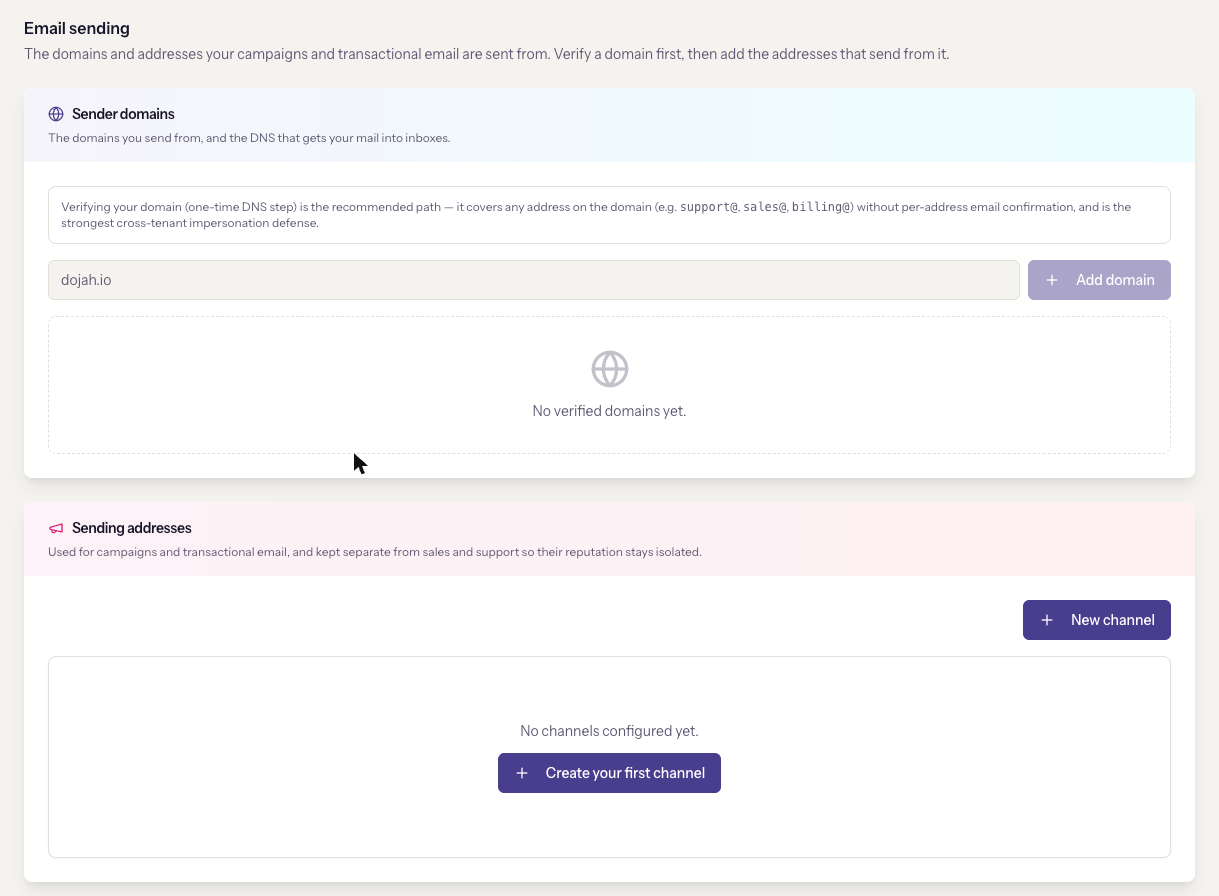
Verify a domain
Verifying a domain once covers every address on it, so support@,
sales@ and billing@ all work without separate confirmation. This is the
recommended path, and it is also the strongest protection against someone
else sending as you.
- In the Sender domains card, type the domain, for example
yourcompany.com, and click Add domain. - The domain appears with a Pending DNS badge. Click DNS records to expand them.
- Publish every record under Required at your DNS host. There is a TXT record that proves this workspace owns the zone, and CNAME records that let ClientSphere sign your outbound mail so inboxes trust it. Each row has a copy button that copies the name and value together.
- Click Re-check. Each record shows a green tick when found or a red cross when not. When all required records resolve, the badge changes to Verified.
DNS usually resolves within seconds, sometimes longer. Re-check is safe to click as often as you like.
Two workspaces on one domain
The TXT record is different per workspace, so a second ClientSphere workspace on the same domain publishes its own TXT alongside yours. Nothing collides.
Advanced deliverability, optional
Below the required records is an Advanced deliverability group with a
Set up button. It adds a DMARC policy and a return path on your own
domain, so bounces show bounce.yourcompany.com instead of the delivery
provider and your mail authenticates two ways instead of one.
It is optional. Sending works without it, and these records never affect whether the domain is verified. Turn it on when you are ready to publish three more records; sending keeps working while you do. If a custom return path already exists on the domain, the card says so and asks you to add only the DMARC record.
Create a sending address
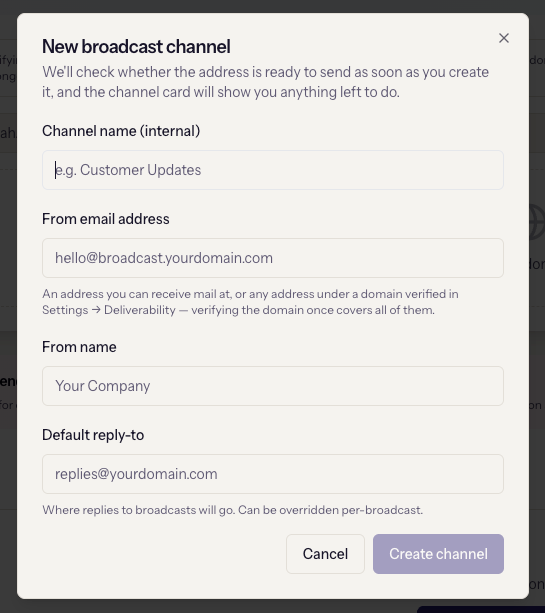
In the Sending addresses card, click New channel:
- Channel name (internal), for your team, such as "Customer updates".
- From email address: any address under the verified domain, or an address you can receive mail at.
- From name: what recipients see, such as your company name.
- Default reply-to: where replies go. Each broadcast can override it.
Click Create channel. ClientSphere checks the address immediately and the card tells you what, if anything, is left to do.
- On a verified domain the card shows Verified straight away. You are done.
- Otherwise the card offers Confirm mailbox ownership, which emails a link to the address, and Enable delivery, which triggers a separate confirmation from the delivery service. Both must complete before the badge reads Verified. Verifying the domain instead is quicker and covers every future address.
An address must be Verified and Active to be picked in a broadcast. Deactivate takes it out of the pickers without deleting its history.
What depends on this
- Broadcasts and sequences pick a sending address in their Sender step.
- Transactional templates name a sending address in Send from. Unverified addresses appear in that list but are disabled.
- Support and sales channels are separate. They receive mail at an inbound address and reply from their own From address, verified in their own settings. Keeping them apart keeps a bad campaign from hurting your support mail's reputation. See Connect a support inbox.
When it goes wrong
- A record shows a red cross after Re-check. Compare the name and
value with what you published. The most common mistakes are a DNS host
that appends your domain to the name automatically, so the record ends
up as
name.yourcompany.com.yourcompany.com, and a trailing dot missing from a CNAME value where the host requires one. - The domain stays Pending DNS for a long time. Propagation at some hosts takes hours. Nothing is wrong on the ClientSphere side; keep re-checking.
- "Sending isn't set up yet" is still showing. The address exists but is not both verified and active. Open the card and check the badges.
- You removed a domain. Addresses it verified go back to unverified unless they were confirmed individually. Adding the domain again gives you the same records, and anything already published stays valid.
Next
Connect a support inbox, so email from customers becomes tickets.