From lead to customer
Add and qualify leads, work them as a list or a pipeline, convert the good ones, and disqualify the rest with a reason.
A lead is a person or company you have not qualified yet. It lives apart from your accounts and contacts until you convert it, at which point it becomes all three: an account, a contact, and an opportunity.
Before you start: a role with Read leads to see them and Update leads to work them. Lead stages come from Settings → Statuses; the defaults are New, Contacted, Qualified, Converted, and Disqualified.
Add a lead
CRM → Leads → Add Lead. The required fields are Email and Company Name; name, phone, job title, website, industry, and company size are optional. Score is 0 to 100 and shows as Hot at 70 and above, Warm from 40, Cold below. Source records where the lead came from, and Assigned To gives it an owner.
Leads also arrive on their own from the public API and from website forms that post to it. Those show their source and can be picked up by an automation trigger; see Triggers.
Work the list or the pipeline
Two views, switched by the icons next to the search box:
- List shows every lead with stage, score, source, owner, and date. The stage cards above it show the split and filter the list when clicked.
- Pipeline shows one column per active stage. Drag a card to another column to change its stage. Converted and disqualified leads are not shown here; filtering to either of those switches you back to the list.
The filter button narrows by stage, source, assignee, and date. A Stalled only chip appears when you arrive from a dashboard insight about leads that have gone quiet.
Qualify, then convert
Move a lead to Qualified when it is worth pursuing, by dragging it or with Qualify on its profile. Convert appears only on qualified leads.
Convert creates three records
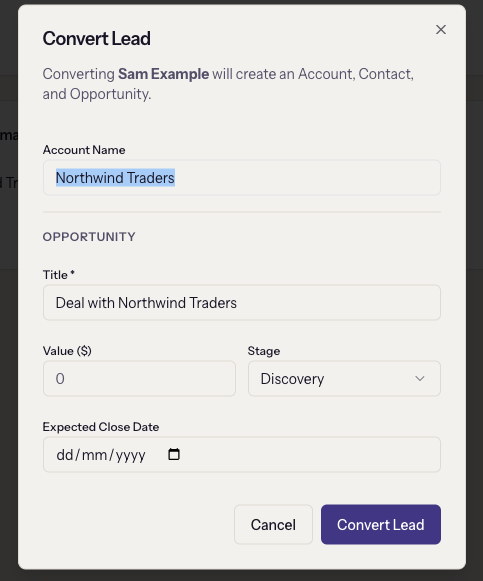
The dialog says it plainly: "Converting this lead will create an Account, Contact, and Opportunity." You name the account, title the opportunity, give it a value, a stage, and an expected close date. Closed stages are not offered. After converting you land on the new account, and the lead shows a "Converted on" banner with links to all three records.
Check before converting whether the company already exists as an account. Convert always creates a new one, and two accounts for one company is the most common cleanup job in a CRM.
Disqualify the rest
Disqualify asks for a reason: Bad Fit, No Budget, Unresponsive, Chose Competitor, Duplicate, or Other, with optional notes. The lead keeps its history and shows a "Disqualified on" banner with the reason. Prefer this to deleting; the reasons are what tell you where your leads come from and why they fail.
Delete removes the lead entirely and cannot be undone.
When it goes wrong
- Convert is missing from the menu. The lead is not in the Qualified stage.
- "Account name and opportunity title are required." Both fields in the convert dialog must be filled.
- A lead vanished from the pipeline. It was converted or disqualified. Switch to the list view and filter by that stage.
- The score badge shows a dash. No score was entered. Scores are manual unless something sets them through the API.