Accounts and contacts
Accounts are the companies you work with and contacts are the people. How to create them, link them, and keep one record per company.
An account is a client company. A contact is a person. Everything else in ClientSphere, from a ticket to an invoice, points at one or both, which is why the whole history of a relationship shows up in one place.
Before you start: roles with Read accounts and Read contacts to see them, the matching Create and Update permissions to change them.
Accounts
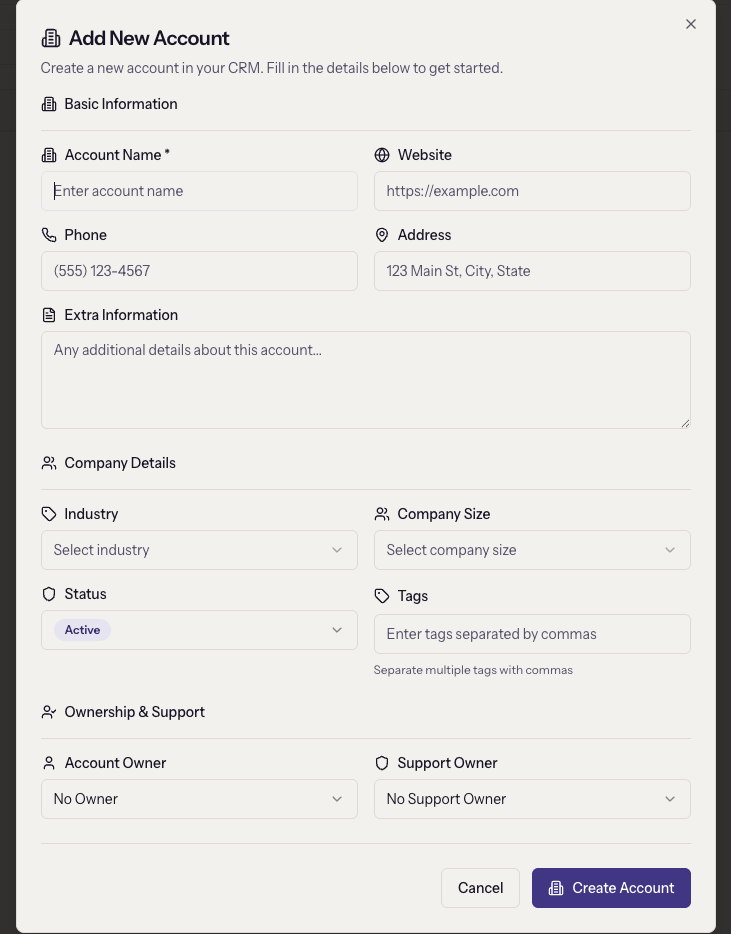
CRM → Accounts → Add Account. Only the Account Name is required. The rest is worth filling in because filters and reports use it: industry, company size, status, and tags.
Two ownership fields sit under Ownership & Support, and they are different people:
- Account Owner is the salesperson responsible for the relationship.
- Support Owner is the agent who handles its tickets. Support channels set to Account-Based assignment route new tickets to this person.
Both appear as columns and filters on the accounts list. Leaving either empty shows Unassigned.
The account profile
Tabs across the top: Overview, Contacts, Opportunities, Tickets, Notes, Tasks, and Emails, each with a count. The Overview shows pipeline value, won revenue, open tickets, and the account's product activity if the floating launcher is installed on your product.
Tags are edited inline on the profile: type in Add tag… and press Enter or a comma. Tags are lower-cased and deduplicated, and they are what dynamic contact lists and automation triggers filter on.
Notes is for the team's own record. Type @ to mention a colleague.
Contacts
CRM → Contacts → Add Contact. First name, last name, and email are required. Pick an Account by typing to search; when one is chosen, an Account Relationship section appears with a status and a Primary contact checkbox.
The Contact filter on the contacts list is by industry, despite the label; Title and Location are fixed lists.
One person, several companies
A contact can belong to more than one account. On the contact's profile, Account Relationships lists them, with a Primary badge on the main one and a role such as "Decision Maker". Link Account adds another. The same relationship is visible from the account's Contacts tab, where Link Contact can either pick an existing person or create a new one in place.
Rows marked Legacy with a Migrate button are contacts linked the old way, before relationships existed. Migrating them is one click and loses nothing.
Last seen in product
The contact profile shows Last seen in product and days active out of the last 30 when the floating launcher is installed on your product with the user's identity. Otherwise it reads "Not seen yet". See Put the floating launcher on your product.
Keep it to one record per company
Accounts are matched by name and contacts by email when they are created through imports, the API, or the website embeds, so duplicates mostly come from hand entry and from converting leads for companies that already exist. Search before you create, and before you convert a lead.
Deleting
Deleting an account removes it and everything attached to it, and the dialog says so. Deleting a contact removes the person and their relationships. Neither can be undone. For a company that has simply stopped being a customer, change its status instead; the history stays useful.
When it goes wrong
- A contact's tickets or emails are not showing on the account. The contact is not linked to the account, or is linked as legacy. Link or migrate from the account's Contacts tab.
- Tickets are being assigned to the wrong person. The account's Support Owner is out of date, and the channel uses Account-Based assignment.
- "Website must be a valid URL starting with http:// or https://". Add the scheme.
- Two accounts for one company. Move the contacts, opportunities, and tickets to the one you keep, then delete the other. There is no merge yet.