Working hours, SLAs and assignment
Set the hours the SLA clocks run, the response targets per channel, and how each new ticket or sales item gets an owner.
Three settings decide whether "we replied on time" means anything: the hours your team works, the target for a first reply, and who a new item lands with. They live in three places, and the first one silently drives the other two.
Before you start: a role with Manage integrations, and at least one support or sales channel, because SLAs and assignment are set per channel.
Working hours
Settings → Company → Working Hours. The card says what it is for: "Used by both Sales and Support SLA calculations."
- Pick the timezone the hours are in.
- Turn on each working day and set its start and end. Mon – Fri fills in a standard week; All Days and Clear All do what they say.
- Add a break to a day with + Add break if your SLA should pause over lunch.
- Click Save All.
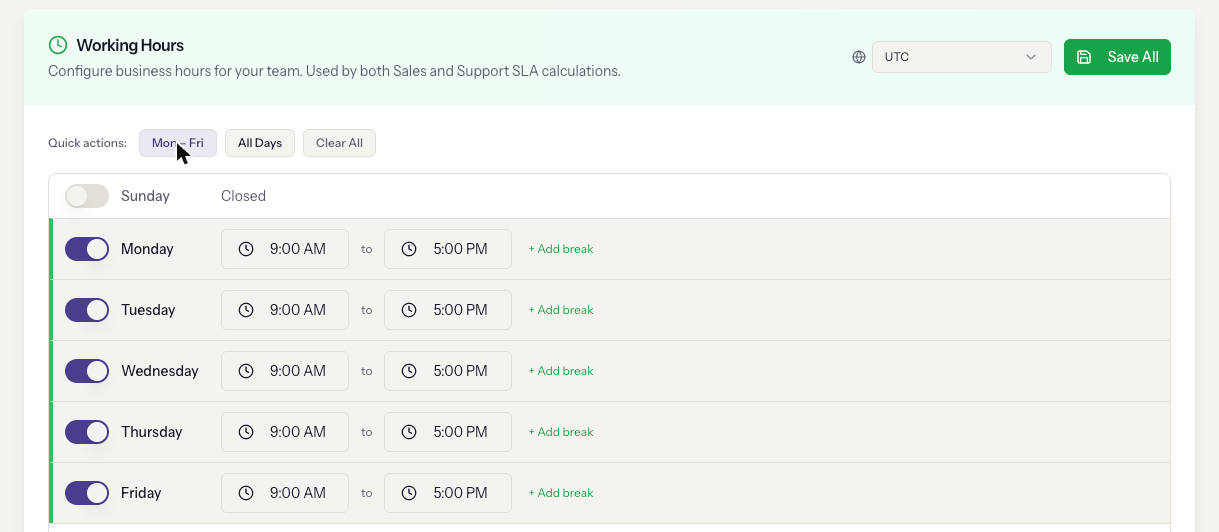
Every SLA deadline is computed in these hours. A four-hour SLA on a ticket that arrives at 5 pm on Friday is due at 1 pm on Monday, not 9 pm on Friday. The same hours decide when the AI is allowed to answer if a widget is set to respond only outside business hours.
No working hours means around the clock
If no hours are set, SLA clocks run on the calendar, and every overnight ticket breaches before anyone is in. Set them before you set an SLA.
SLAs, per channel
Settings → Support → SLA & Automation and Settings → Sales → SLA & Automation. Pick the channel, then:
- Default SLA: the target for a first reply, from 30 minutes to 24 hours. This is what the SLA Deadline on a ticket and the 2h left chip on a sales item count down to.
- Follow-up Reminder: after how many days without a customer reply the team is nudged.
- Escalate Unassigned After: how long an item may sit with no owner before it is escalated.
Click Save Changes. A channel with no SLA set has no deadline, so the reports' SLA figures will be blank for it.
Assignment, per channel
Settings → Support → Defaults and Settings → Sales → Defaults, in the Assignment Mode card. Four modes:
| Mode | What it does |
|---|---|
| Fixed Person | Always assign to the channel's default assignee. |
| Round Robin | Rotate evenly across the agents you pick. |
| Load Balanced | Assign to the agent with the fewest open items. |
| Account-Based | Assign to the account owner; fall back to round robin among the agents you pick. |
For the last three, tick the Agent Pool. The card warns "Select at least one agent for the pool" if you leave it empty, and the Agent Workload list below shows current open items per agent so you can see the effect.
The Global Fallback Assignee at the top of the Defaults tab catches anything the mode cannot resolve, such as a fixed channel whose default person was deactivated.
How to check it is working
Send a test email to a channel and open the item. SLA Deadline should be a time inside working hours, and Assignee should be filled according to the mode. After a reply, First Reply fills in. The Reports page then shows Support SLA and Sales SLA compliance and a median response time that excludes nights and weekends per your working hours.
When it goes wrong
- Every ticket is overdue in the morning. Working hours are not set, or are set in the wrong timezone.
- Items land in Unassigned. The mode is Fixed Person with no default assignee, or the pool is empty. Set the Global Fallback Assignee so nothing is ownerless while you fix the channel.
- The SLA tabs say "Create a channel first". They are per channel. Create the channel, then come back.
- Reports show no SLA numbers. The channel has no SLA set, or there have been no items since it was set.
Next
The workspace can now receive, assign, and answer email on time. The Use track covers the everyday work from here: lists, broadcasts, tickets, and the sales inbox.