Connect a support inbox
Turn a support address into tickets. Create the channel, forward your mailbox to it, confirm, and set what happens to each new email.
A support email channel is how email from customers becomes tickets. You create the channel in ClientSphere, it gives you an inbound address, and you forward your existing support mailbox to that address. Replies from a ticket go out from the channel.
Before you start:
- A role with Manage integrations.
- Admin access to the mailbox you will forward, such as
support@yourcompany.comin Google Workspace or Microsoft 365. - Ideally the domain is already verified for sending, so replies come from your address straight away.
Everything is under Settings → Support → Email Channels.
Create the channel
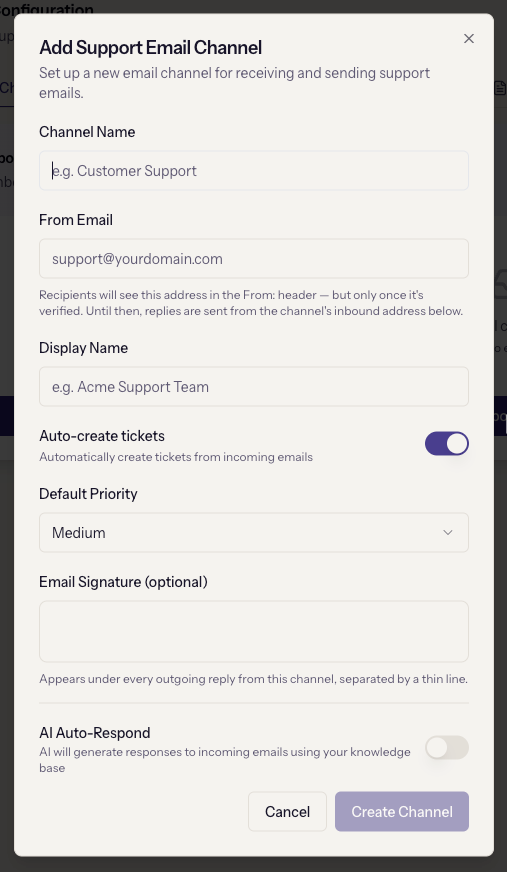
Click Add Support Email Channel and fill in:
- Channel Name, for your team, such as "Customer Support".
- From Email: the address customers see on replies, such as
support@yourcompany.com. Until it is verified, replies go out from the channel's inbound address instead. The form says so. - Display Name, such as "Acme Support Team".
- Auto-create tickets: on, unless you want to review email in quarantine first.
- Default Priority for tickets created from this channel.
- Email Signature, optional, added under every reply from this channel.
- AI Auto-Respond, and if on, the Response Mode: Draft for review or Auto-send immediately. Start with draft; see Turn on AI before choosing auto-send.
Click Create Channel.
Forward your mailbox
The Set Up Email Forwarding dialog opens with the channel's Inbound Address, a long generated address with a copy button. Forward your support mailbox to it:
- Gmail and Google Workspace. Settings → Forwarding and POP/IMAP → Add a forwarding address → enter the inbound address. Google sends a confirmation email to that address, which arrives in ClientSphere like any other message: look for it in Support → Tickets, or in Settings → Support → Quarantine if it was held. Use the code or link in it, then choose "Forward a copy of incoming mail to…".
- Outlook and Microsoft 365. Settings → Mail → Forwarding → enable forwarding → enter the inbound address. Optionally keep a copy in the mailbox.
- Other providers. Look for "Forwarding" or "Mail rules" and forward all incoming mail to the inbound address.
Click Send Test Email in the dialog, or Test on the channel row later, and check that a ticket appears in Support → Tickets.
Verify the From address
Open the channel with Edit. Below the form, a verification block shows the address as Verified or Unverified and explains what is missing:
Two things have to be true before this address can be used. Send confirmation email mails a link to the address — clicking it proves this workspace controls the mailbox. The address also has to be cleared for delivery: if your domain is already verified, delivery status shows Verified (domain) and you're done. Otherwise click Enable delivery and follow the separate link we send.
If the domain is verified under Email sending, delivery is already cleared and only the mailbox confirmation remains. Click Send confirmation email, click the link in the mailbox, then Re-check.
Decide what happens to each email
The other tabs under Settings → Support are all per channel, and each says "Create a channel first" until one exists:
- SLA & Automation: the Default SLA for a first reply, from 30 minutes to 24 hours, the Follow-up Reminder, and Escalate Unassigned After. The clock runs on working hours; see Working hours, SLAs and assignment.
- AI Settings: the same auto-respond and response mode as the channel form.
- Defaults: the Global Fallback Assignee used when a channel's assignment mode does not resolve to anyone, and the Assignment Mode per channel.
- Templates: saved replies agents insert from the composer.
- Quarantine: inbound email that was skipped, errored, or could not be linked to a ticket. Each row can be recovered as a new ticket or dismissed. Nothing is lost.
When it goes wrong
- The tickets inbox says "No email channel is receiving mail yet." No channel exists; the message links here.
- Tickets are not appearing. Send a test from an outside mailbox. If it shows in Quarantine with a reason, act on the reason. If it shows nowhere, forwarding is not active at the provider: check that the forwarding address was confirmed and the rule is on.
- Google's forwarding confirmation never arrived. It was sent to the inbound address, so it is in ClientSphere: check Tickets, then Quarantine.
- Replies come from a strange long address. The From address is not verified yet, so replies use the inbound address. Complete the verification block above.
- The channel shows Inactive. Someone deactivated it. Edit and set it active; inbound mail while it was off is in Quarantine as Channel inactive and can be recovered.
- Every email becomes a ticket, including newsletters. Forward only the support mailbox, not a personal one, and turn off Auto-create tickets if you would rather review first.
Next
Connect a sales inbox, which works the same way for inbound sales email.