Put the floating launcher on your product
Configure the pill button and its quick-action menu, install it with the user's identity, and feed Product Analytics.
The floating launcher is a small pill button, "Support" by default, that opens a menu of quick actions: search the help centre, contact you, suggest an improvement, open a page. It is lighter than the Support Hub, has no chat of its own, and is meant for inside your product, on every page.
It is also what feeds Product Analytics. When the launcher is installed with the logged-in user's identity, every page load records that the person was in the product, and every help search is logged. Without the identity attributes it is just a button. See Product Analytics for what that data becomes.
Before you start: a role with Manage support widgets. The tag and its attributes are covered for developers in Floating launcher.
Everything is under Settings → Support Widgets → Floating Launcher.
Appearance
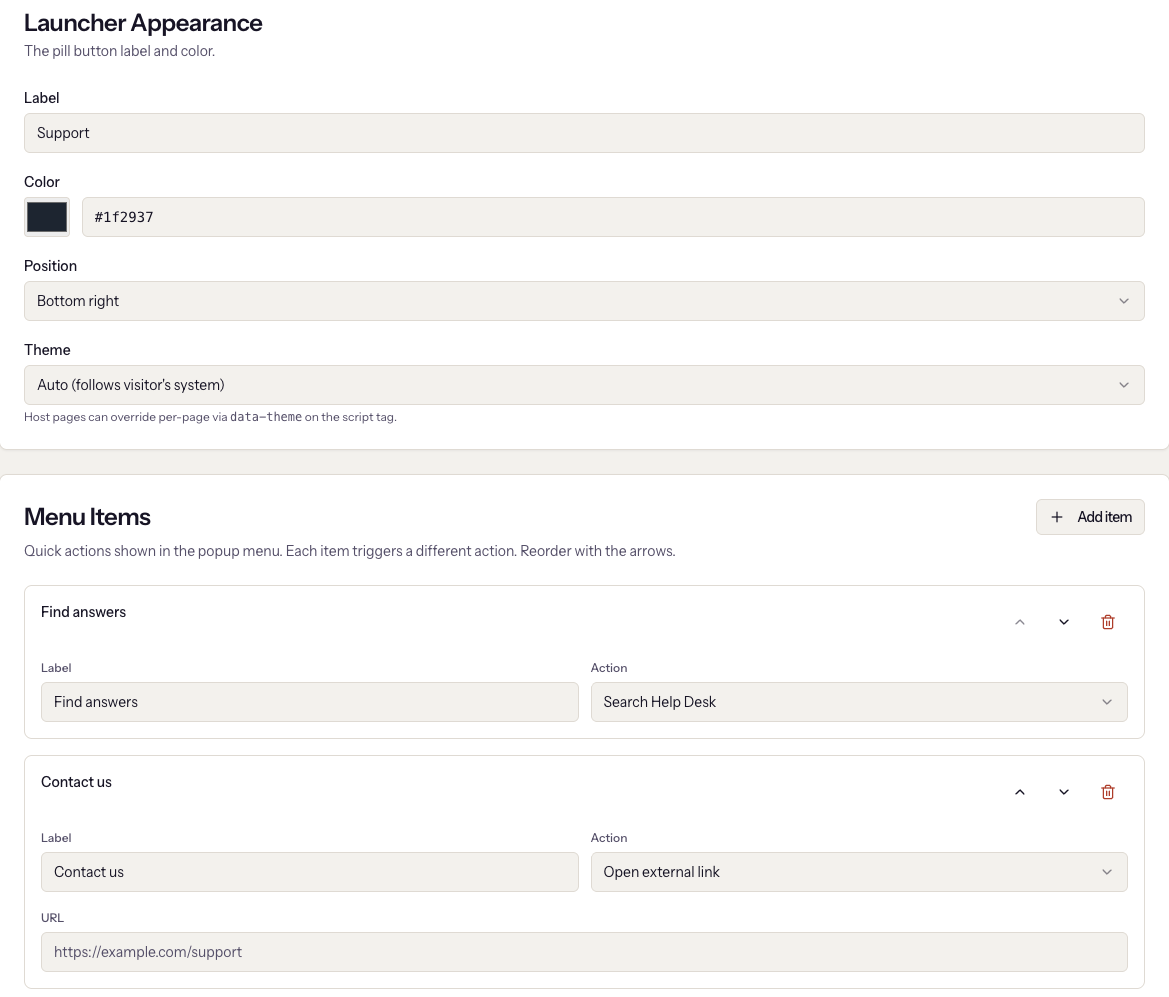
Label is the text on the pill, up to 40 characters. Color is its
background. Position is one of the four corners. Theme follows the
visitor's system by default, or can be always light or always dark; a host
page can override it per page with data-theme on the script tag.
Menu items
Each item is one action in the popup. Click Add item, give it a Label, and pick an Action:
| Action | What happens |
|---|---|
| Search Help Desk | Opens a search over your published articles |
| Suggest an improvement form | The feature request form; submissions land in Support → Feature Requests |
| Open external link | Goes to the URL you enter |
| Open chat (link to chat page) | Goes to the Chat page URL you enter, such as a page where the Support Hub is installed |
A link with no URL is dropped from the menu
An Open external link or Open chat item with an empty URL is left out of the visitor's menu. Settings shows a warning under the empty field. Two of the default items, "Contact us" and "Support page", start with no URL, so they do nothing until you fill them in or remove them.
Reorder with the arrows and click Save changes. Changes reach visitors within about a minute; the launcher caches its configuration briefly.
Install it
The Install card offers two snippets. Use the second one.
- Basic carries only the workspace id. The launcher works, nothing is attributed, and Product Analytics stays empty.
- With user identity (recommended) adds the user's name, email, and company as attributes. Replace the placeholder values with the real ones when your app renders the page. With these set, feature requests carry the submitter, the person is created as a contact on first load, and their presence in the product is recorded.
Paste it inside <head> or before </body> on every page of the product.
If the chat widget is already on the site, the note under the snippets
applies: you can pass your existing widget id instead of the company id and
the launcher resolves the workspace from it.
What it records
With identity set, on page load the launcher finds or creates the contact by email and links it to the account named in the company attribute. That happens once per six hours per browser, so it does not fire on every page. Each help search is logged with the query and whether it found anything. Feature requests are tagged with the submitter.
When it goes wrong
- The launcher is not on the page. The tag is missing, or the console shows that the workspace id could not be resolved. The developer guide lists the console messages.
- Product Analytics shows nothing. The basic snippet was used. Switch to the identity snippet; data starts with the next page load.
- Feature requests show as Anonymous. Same cause.
- A menu item is missing for visitors. It is a link with no URL; the settings page marks it in amber.
- Search returns nothing. No published articles match. Publishing is covered in Write and publish articles.
Next
Turn on AI, so the widget and your inboxes can answer on their own.