Publish your knowledge base
Turn on the public help centre, decide who can write and publish, brand it, and serve it on your own domain.
The knowledge base is one set of articles with three readers: your team, the AI, and, once you turn on public access, your customers. Publishing an article changes what the chat widget and the email auto-responder say, so it is worth deciding the rules before the first article goes live.
Before you start: a role with Manage knowledge base. Writing the articles themselves is covered in Write and publish articles.
Everything is under Support → Knowledge Base → Configuration. Click Save Settings when you are done; nothing saves on its own.
Turn on public access
In General Settings, set the Knowledge Base Title and Description visitors see, then turn on Enable Public Access. The Public URL in the next card is the address to share, with a Copy button and a preview link.
Two toggles under Public Access shape the reader's experience:
- Show Feedback Options lets readers mark an article helpful or not. Leave this on; it is what feeds the Needs Attention list on the Analytics tab.
- Show View Counts displays how often each article has been read.
Only articles with status Published appear publicly. Drafts and archived articles stay internal.
Decide who can write and publish
Under Permissions & Security, three settings:
| Setting | Options |
|---|---|
| Article Creation Permission | Admin Only, Manager & Above, All Users |
| Article Publishing Permission | Admin Only, Manager & Above, Author & Above |
| Category Management Permission | Admin Only, Manager & Above |
A common arrangement is that everyone can draft, managers publish, and admins manage categories. Because a published article is immediately what the AI answers from, keep publishing narrower than creation until the team has a review habit.
Brand it
Appearance has a Theme of light, dark, or auto, a Brand Color, and Show Company Logo, which uses the logo from Settings → Company. Footer CTA Text and Footer CTA URL in General Settings add a call-to-action above the footer on every article and category page; both must be set for it to show.
SEO Keywords can be left empty; they are generated from your category names. Per-article titles and descriptions for search engines are set on each article.
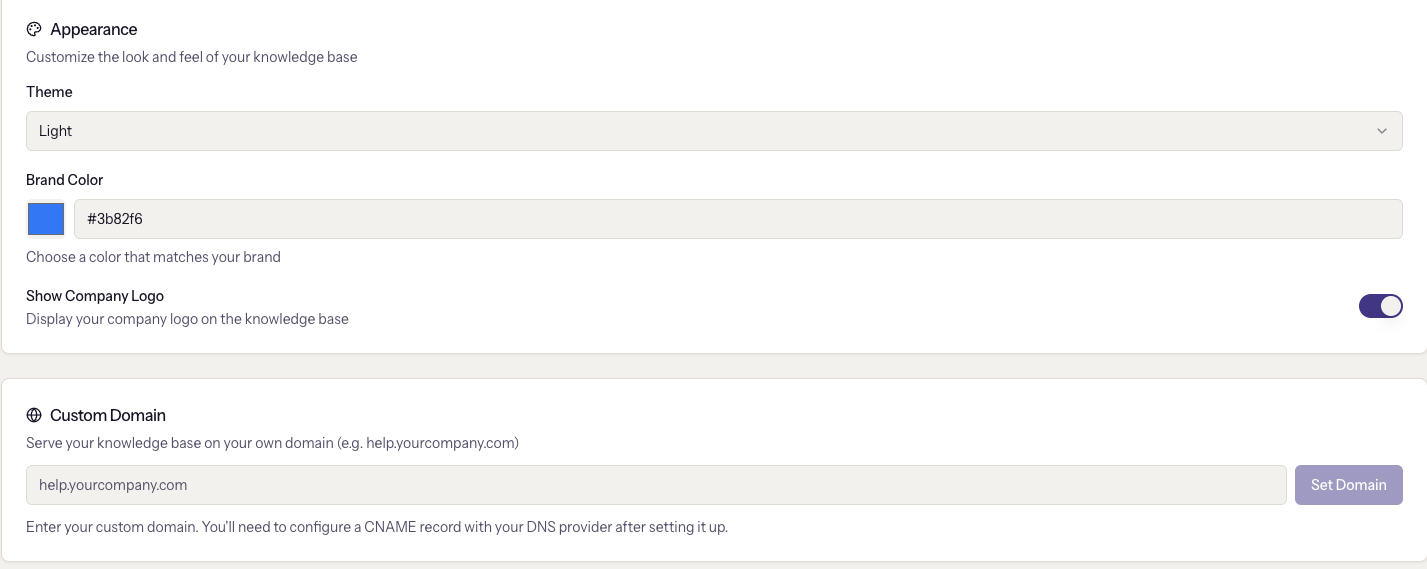
Use your own domain
By default the help centre lives at a ClientSphere address. To serve it at
something like help.yourcompany.com:
- Under Custom Domain, type the domain and click Set Domain. The card now shows it with a Pending Verification badge and a DNS Configuration Required block.
- At your DNS host, add the record it shows: type CNAME, name as
shown (the first part of your domain, such as
help), value the target as shown. Copy it exactly. - Click Verify DNS. When the record resolves, the badge changes to Verified and the help centre answers on your domain.
This is not the same as verifying an email domain
The help centre uses one CNAME record. Email sending uses a TXT record and several CNAMEs, under Settings → Email sending. The two are unrelated; verifying one does nothing for the other, and their records must not be confused at the DNS host.
Remove disconnects the domain; visitors using it lose access until it is set again.
Files for AI assistants
Once public access is on, the help centre also serves two plain-text files that AI assistants and search agents read in preference to crawling pages:
| File | What it contains |
|---|---|
/llms.txt | Title, description, your categories, and one line per published article with its excerpt and link. |
/llms-full.txt | The same index followed by the full text of every published article. |
They live at the root of the help centre, so on a custom domain that is
https://help.yourcompany.com/llms.txt, and on the default address it
follows the Public URL shown in Configuration. There is nothing to
turn on: they exist whenever public access does, they contain only
Published articles, and they refresh within an hour of a change.
Nothing else needs to be done for a customer's assistant to find them, but if you write your own bot or use a tool that asks for a "knowledge source", the full file is the address to give it.
When it goes wrong
- "DNS records not found. Please check your CNAME configuration." The record is not published yet, has a typo, or has not propagated. The block says changes can take up to 48 hours; try again later rather than removing and re-adding.
- The public page is blank or shows nothing. No articles are Published, or public access is off.
- Readers see articles you meant to be internal. Their status is Published. Set it to Draft or Archived.
- The logo does not appear. No logo is uploaded under Settings → Company, or Show Company Logo is off.
Next
Write and publish articles, and Turn on AI so the same articles answer visitors.