Put the Support Hub on your site
Create a support channel, choose what visitors see when they open the widget, and paste one script tag onto your site.
The Support Hub is the chat widget visitors open on your website. It can search your help centre, start a conversation with your team or the AI, take a message when nobody is online, and collect suggestions. This page is the admin side: what to configure before a developer pastes the tag. The tag itself, the identity attributes, and what they write to the CRM are in the developer guide, Support Hub.
Before you start: a role with Manage support widgets. If you want the widget to search articles, publish some first; see Publish your knowledge base.
Everything is under Settings → Support Widgets.
Create a support channel
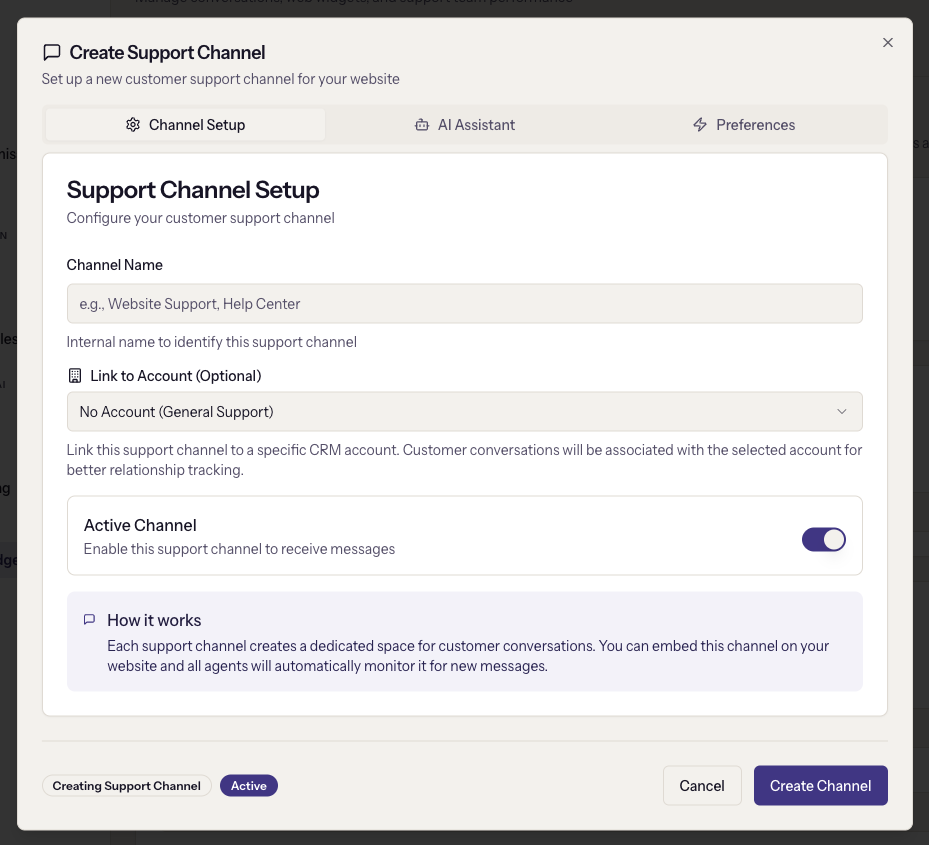
A support channel is one widget: one embed code, one stream of conversations. Click Create Support Channel.
- Channel Setup. A Channel Name for your team, such as "Website Support". Link to Account is optional and is for a widget installed inside one specific customer's product, so its conversations attach to that account; leave it as No Account (General Support) for a public site. Keep Active Channel on.
- AI Assistant. Enable AI Auto-Respond lets the AI answer visitor questions from your knowledge base and imported documents. Visitors can escalate to a person at any time. The assistant's name and welcome message are set once for all widgets under Settings → AI Agent → Support AI; see Turn on AI.
- Preferences. Require Email asks the visitor for an email before a chat starts, which is how a conversation becomes a contact. Collect Customer Info gathers extra details for agents.
Click Create Channel.
Choose the landing experience
The Support Hub tab configures what every widget in the workspace shows when opened. It is workspace-wide, not per widget.
- Landing Mode. Hub (recommended) opens on a grid of cards. Chat-only (legacy) opens straight into the conversation with the AI welcome message.
- Appearance. Primary Color for buttons and highlights, shared by sandbox and live widgets.
- Hub Appearance. The Hub Title and optional Hub Subtitle
visitors see at the top, a Banner Color that defaults to a softened
version of the primary colour, and a Theme of auto, always light, or
always dark. A host page can override the theme per page with a
data-themeattribute on the script tag.
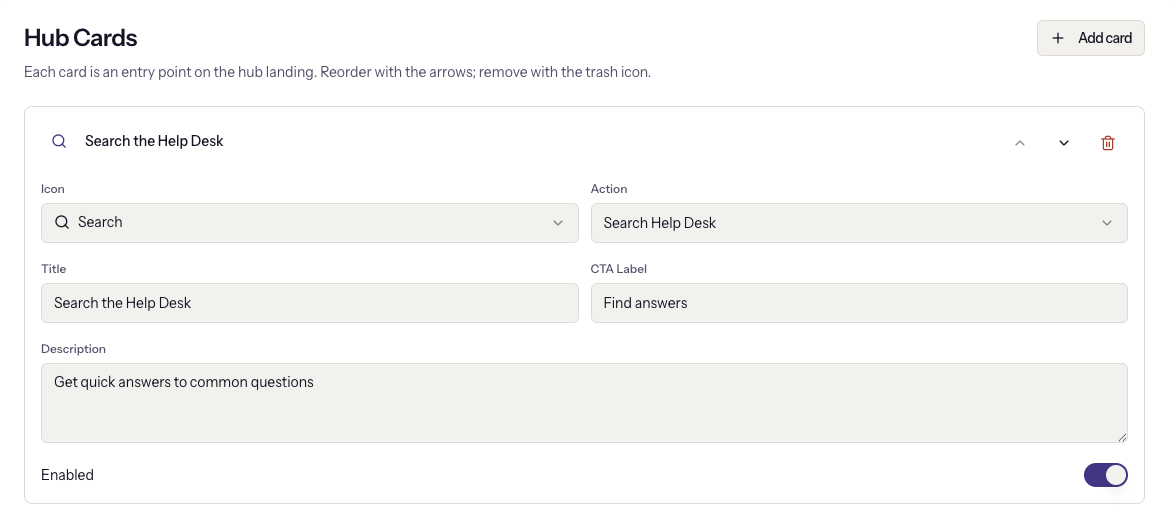
Hub cards
Each card is an entry point. Click Add card, then set an icon, a title, a description, a CTA Label, and an Action:
| Action | What happens |
|---|---|
| Open chat | Starts a conversation |
| Search Help Desk | Opens a search over your published articles |
| Open external link | Goes to the URL you enter |
| Email us form | A name, email, subject, and message form for when nobody is online |
| Suggest an improvement | The feature request form |
Reorder with the arrows, remove with the bin, and switch a card off with Enabled rather than deleting it if you might want it back. The default set is a good start: search, get in touch, setup guide, API documentation, and suggest an improvement.
Product categories
The Suggest an improvement form asks the visitor to pick a product category. Add at least one under Product Categories, or the form cannot be submitted. The defaults are Billing, Features, Integrations, UI/UX, Performance, and Other; replace them with your own product areas. Submissions land in Support → Feature Requests.
Click Save changes.
Install it
Back on the Support Hub tab, the Install card has Get embed code. Three variants are offered:
- Basic Embed: the widget id only. Visitors are anonymous until they give an email.
- Enhanced Embed with Customer Data: the same tag with the logged-in user's name, email, and company as attributes, so conversations are attached to the right contact and account from the first message. Use this inside your product.
- Dynamic JavaScript Embed: for single-page apps and tag managers that set the attributes at runtime.
Hand the snippet to whoever maintains the site. The developer guide covers the attribute list, how identification creates contacts and accounts on page load, and the checks to run when the widget does not appear.
Watch it work
Team Status on the same page shows which agents are online and how many channels each is watching. Conversations arrive under Support → Chat; see Live chat conversations.
When it goes wrong
- The widget does not appear on the site. The channel is inactive, the tag is missing the widget id, or a second copy of the tag is on the page. The developer guide has the console messages to look for.
- Visitors cannot submit a suggestion. There are no product categories. Add one.
- The AI answers nothing useful, or does not answer at all. AI is off for the channel, off at the workspace master switch, or limited to outside business hours. See Turn on AI.
- A card does nothing. An Open external link card with no URL is skipped by the widget without a warning. Give it a URL or switch it off.
- Two widgets show different colours. They cannot. Appearance is workspace-wide; one of the pages is loading a cached copy of the script.
Next
Put the floating launcher on your product, the lighter embed for inside your app.