Sequences
Build a multi-step email series with delays between steps, test each step, activate it, and watch who is moving through it.
A sequence is a series of emails sent one after another with a wait between each: a welcome series, a nurture, a renewal reminder. People are enrolled into it by hand from a contact list, or automatically by a trigger.
Before you start: a verified, active sending address; see Set up email sending. A role with Manage email sequences.
Create the sequence
Automation → Sequences → New sequence. The editor has three tabs.
Settings
- Name and an optional Description.
- Sending channel: the address the emails come from. Unverified or inactive addresses are listed but cannot be chosen.
- Skip weekends: "Push sends that land on Sat/Sun (UTC) to the following Monday."
Steps
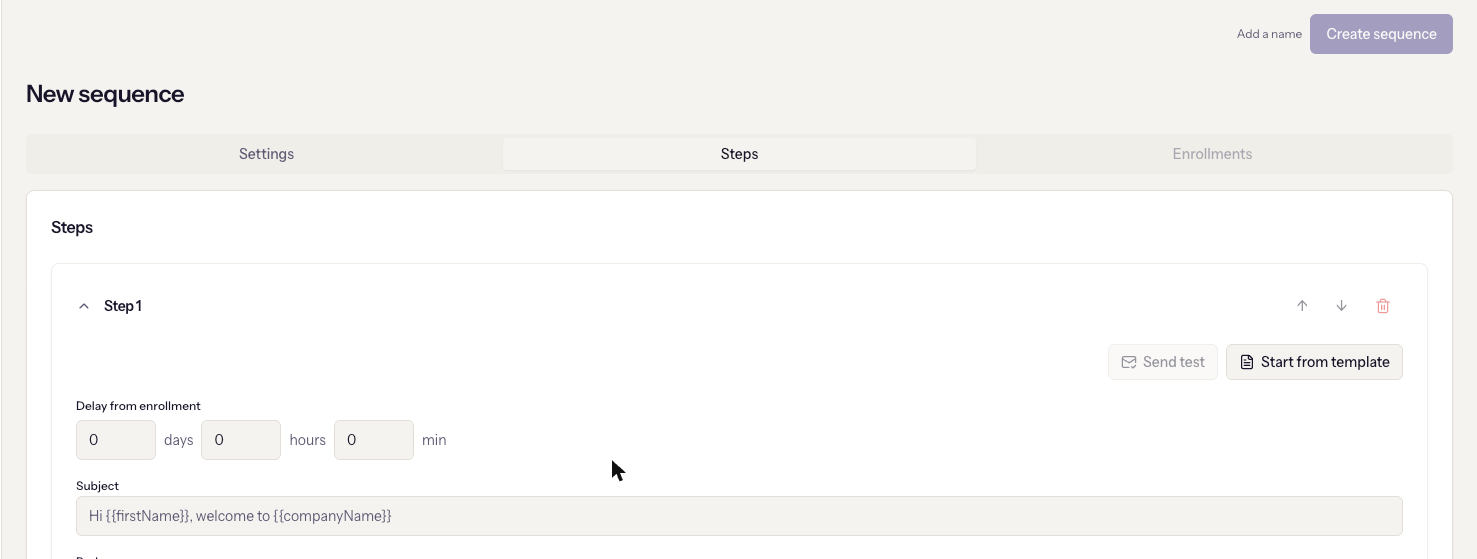
Each step is one email. Add step appends one; the arrows reorder and the bin removes, though the last remaining step cannot be removed.
- The delay is entered as days, hours, and minutes. On the first step it is labelled Delay from enrollment; on every later step, Delay from previous step. A collapsed step shows its wait as "Wait 2d 4h" or "Send immediately".
- Subject and Body. The body is the visual editor, and Start from
template loads a designed starter into it. Merge variables such as
{{firstName}}and{{companyName}}work in both, typed directly or from the toolbar menu.
Edits to a step are captured when you leave it
Only one step editor is open at a time. Switching to another step or another tab saves what you typed into the draft. Save the sequence itself with Save changes before closing the page.
Send test on a step emails you that one step with its current, unsaved content. Merge variables are sent literally rather than filled in, so the test checks layout and wording, not personalisation. It needs the sequence saved and a channel chosen first.
Enrollments
This tab is disabled until the sequence has been saved once; there is nothing to enrol into before that. Afterwards it lists everyone in the sequence by Active, Completed, Exited, and Failed, with their current step and next send time. Stop ends one person's enrolment; Stop all active ends everyone's. Neither can be resumed.
Save, activate, pause
Create sequence saves it. The button stays disabled, with the reason beside it, until there is a name, a channel, and a subject on every step: "Step 2 needs a subject" is the usual one.
A new sequence starts paused. Activate starts sending; Pause stops future sends without removing anyone. Enrolments made while paused queue up and fire when it is activated.
Enrol people
- From a contact list: open the list and click Enroll in sequence. Suppressed addresses and people already active in the sequence are skipped, and the result screen counts each. See Build a contact list.
- Automatically: a trigger enrols a lead, contact, or an account's contacts when something happens.
Opt-outs are honoured at every step: someone who unsubscribes mid-sequence receives nothing further.
When it goes wrong
- "No broadcast channels — create one in Broadcasts settings first." There is no sending address. See Set up email sending.
- Save fails with a message about the body. A step has a subject but an empty body. The editor lets you leave it empty; the server does not.
- The Enrollments tab is greyed out. Save the sequence first.
- Sends go out on a Saturday. Skip weekends is off, or the wait landed on Friday night in UTC, which is still Friday.
- Someone did not get step 3. They unsubscribed, bounced, or were stopped. The Enrollments tab shows which under Exited or Failed.