Build a contact list
Static lists you curate, dynamic lists that keep themselves current, and what each means when a broadcast goes out.
A contact list is an audience. Broadcasts send to one, and sequences enrol one. There are two kinds, and the kind is chosen when the list is created and cannot be changed afterwards, so it is worth deciding first.
Before you start: you need a role with Manage contact lists. Sending to a list also needs email sending set up, but you can build lists before that is done.
Static or dynamic
| Static | Dynamic | |
|---|---|---|
| What it holds | Companies you link, plus individual people you add | Whatever matches the filters you set |
| When membership changes | When you edit it | On its own, as companies start or stop matching |
| Good for | A curated audience: a customer segment you picked, a conference list, a set of named people | "All customers", "every prospect tagged fintech", or simply everyone |
| Can hold people with no company | Yes, as individual people | Only with Include every contact |
The create dialog describes the choice as:
- Static. "Pick companies yourself. Fixed until you edit it."
- Dynamic. "Tracks companies matching filters — updates itself."
The type is permanent
The detail page edits a static list's members or a dynamic list's filters, but never the type. If you pick the wrong kind, create a new list.
One rule that applies to both
Membership is resolved when the broadcast goes out, not when you build the list or schedule the send. For a static list that links companies, this means the list is not fixed in headcount: a contact added to one of those companies next week is in next week's broadcast. The detail page says this plainly:
Contacts are resolved from linked companies at send time — new contacts added to any linked company are automatically included in the next broadcast.
Unsubscribed and suppressed addresses are removed at send time too, so the contact count shown on the list is approximate. See Send your first broadcast.
Create a static list
- Go to Email → Contact Lists and click New list.
- Give it a name. The description is optional.
- Leave Static selected and click Create list.
The list opens empty, with two panels.
Link companies
The Add companies panel on the right lists every company not yet on the list. Narrow it with the search box, Tag, or Company status, then either tick companies and click Add selected, or click Add all matching to link everything that fits the current filters.
Add all matching shows the number it will add and asks you to confirm. It is disabled above 10,000 matches, with the tooltip "Too many matches. Narrow the filters to 10,000 or fewer."
Linked companies appear in the Linked companies panel on the left with their contact count. Hover a row and click the cross to remove it.
Add individual people
The Individual people section at the bottom is for people you want on the list by name, including people who belong to no company. Search by name or email, tick, and click Add selected.
People added here are exactly the people you picked. Adding a person does not pull in their colleagues, and a person whose company is later linked to the list is still counted once.
Create a dynamic list
- Click New list and choose Dynamic.
- Set at least one filter: Company status, Tag, or Company name contains. A company must match all of the filters you set.
- Click Create list.
The detail page shows Matching companies on the left, read-only, and the Filters editor on the right. Change the filters and click Save filters; the note above the editor is worth reading once:
Changes apply to future broadcasts and sequence enrollments — anything already sent is unaffected.
Include every contact
Tick Include every contact to make the list mean everyone in the workspace, including people with no company. The three filters are ignored and disabled while it is on.
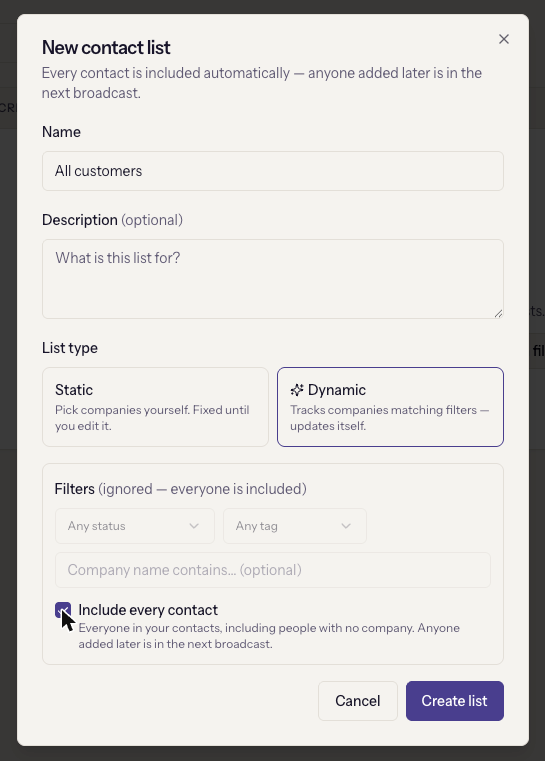
Everyone means everyone
An "everyone" list includes contacts created by transactional email, the public API, and the chat widget, none of whom asked for marketing. Opt-outs still apply at send time, but a person who never opted in has nothing to opt out of. For marketing, prefer a status or tag filter that describes consent.
Enrol the list in a sequence
Enroll in sequence at the top of the detail page puts every member into a sequence in one go. Suppressed addresses and people already active in that sequence are skipped, and the result screen tells you how many of each.
The button is disabled while the list has no contacts, or while it is still being built from a file.
When it goes wrong
- "At least one filter is required — or turn on 'Include every contact' to send to everyone." A dynamic list cannot be saved with no filters. That is deliberate: an unfiltered list would silently mean everyone.
- A yellow banner says the list is still being built. It came from a file import that has not finished. It cannot be sent to or enrolled until it has. See Import a list from a spreadsheet.
- "Lists referenced by a broadcast cannot be deleted." A sent or scheduled broadcast points at this list. Cancel the schedule first, or leave the list in place for the report.
- The company count and the contact count don't add up. They are not meant to. Companies are counted once; contacts are the distinct people reachable through them plus anyone added individually.