Import a list from a spreadsheet
Build a contact list from a CSV or Excel file, decide whether the rows are people or companies, map the columns, and read the results.
You can create a contact list straight from a spreadsheet. The import runs in the background, creates whatever is missing in the CRM, and reports every row it could not use.
Before you start: the file needs a header row. CSV, TSV and plain text
are streamed with no row limit. Excel (.xlsx, .xlsm) is read in full and
has a row cap; if the dialog tells you only the first rows will be imported,
save the sheet as CSV and try again.
Decide what the rows are
The one decision that changes the outcome is What's in the file?
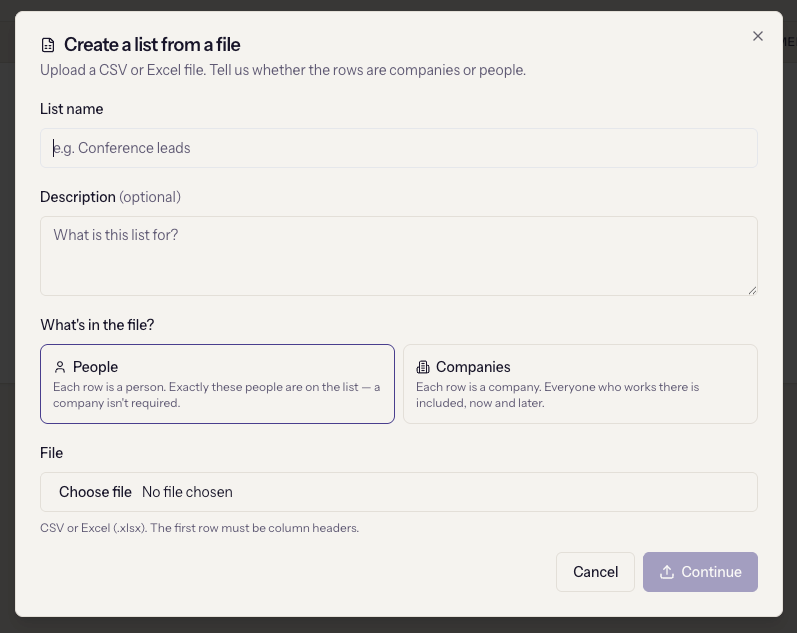
- People. "Each row is a person. Exactly these people are on the list — a company isn't required." Each row needs an email. The person is matched to an existing contact by email, or created. If the row has a company name that matches a company already in the CRM, the person is linked to it. If it does not match, no company is created: the name is kept on the contact as text and the person is on the list on their own.
- Companies. "Each row is a company. Everyone who works there is included, now and later." Each row needs a company name. The company is matched by name or created, and the list links the company, so whoever is a contact of it when a broadcast goes out receives it. No contacts are created in this mode.
A people list is exactly the rows in the file. A companies list is open-ended.
Run the import
- Go to Email → Contact Lists and click Import from file.
- Give the list a name, choose People or Companies, and pick the file. Continue stays disabled until both are set.
- Map the columns. Each field the CRM stores is matched to a column from
the file, or set to Don't import. Headers are matched automatically
where the names are recognisable; check them anyway.
- People: Email is required. First name, last name, company name, job title and phone are optional.
- Companies: Company name is required. Website, industry and phone are optional. There is also a checkbox, Create companies that aren't in the CRM yet. Turn it off to import only names that already match and get a report of the rest.
- Check the preview of the first rows, then click Create list.
The dialog switches to Building your list with a live count. You can close it; the import carries on, and the list shows a Building badge until it is done.
A building list cannot be sent to
Until the import finishes, the list cannot be used for a broadcast or a sequence. Broadcasts refuse it, and Enroll in sequence is disabled with the reason in its tooltip. Half an audience is worse than none.
Read the results
When the import completes the dialog shows three figures:
- people on the list or companies on the list: the members.
- newly created: rows that produced a new contact or company.
- already in your CRM: rows that matched an existing record, which was reused rather than duplicated. Matching is by email for people and by name for companies, both case-insensitive.
If any rows were skipped, a table lists each one with its row number, the reason, and the value that caused it. Blank or malformed emails, and duplicates of an earlier row in the same file, are the usual reasons. Nothing is skipped silently.
When it goes wrong
- "Email is required — pick the column that holds it." In People mode the email column has to be mapped before the import can start. The same applies to Company name in Companies mode.
- "Could not read that file." The file is not a supported type, or the first row is not a header row.
- The Excel banner says only the first rows will be imported. The sheet is over the Excel cap. Export it as CSV, which has no limit.
- "Import failed" and the list may be partially built. The server stopped part way. The list keeps the rows that were processed; delete it and run the import again rather than topping it up.
- Everyone landed as "already in your CRM". That is expected on a re-import. The list still gets every row as a member.