Work the tickets inbox
Find the tickets that need you, reply by email or leave a note for your team, let the AI draft, and stay inside the SLA.
Tickets are support requests. Most arrive by email through a support channel; some are created by hand from an account or a chat. The tickets inbox is where you work them.
Before you start: for tickets to arrive by email, an admin needs to connect a support inbox. Until then the inbox stays empty, and replies from a ticket are not possible because there is no address to send from. Working the inbox needs a role with Read tickets; replying needs Update tickets.
Find what needs you
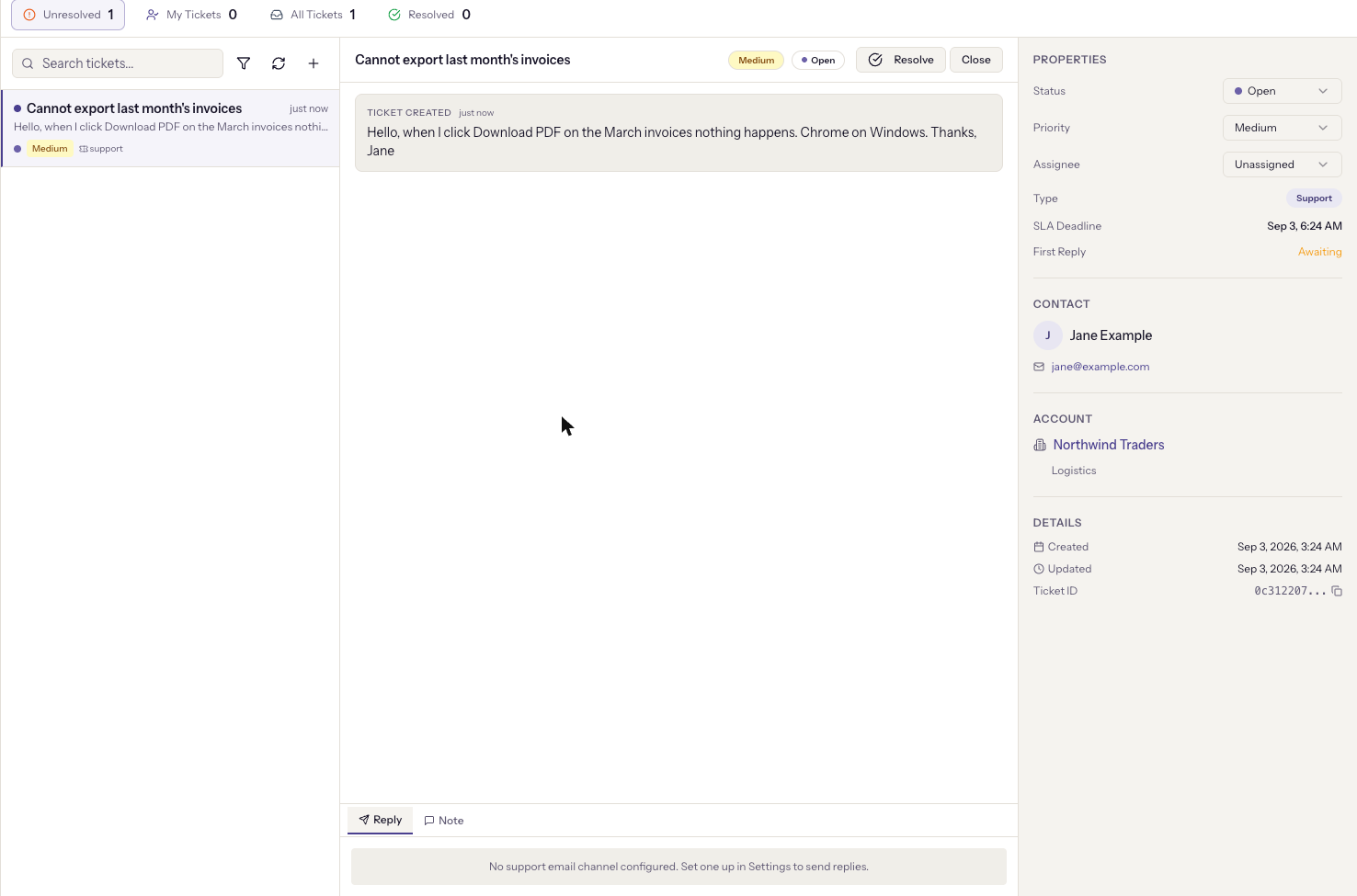
The bar at the top counts Unresolved, My Tickets, All Tickets, and Resolved. Start on My Tickets.
In the list, a blue dot means Needs reply: the last message is from the customer. A red SLA Overdue badge means the response deadline has passed. The filter button narrows by status, priority, assignee, type, and date, and the SLA breached badge appears when you arrived from the dashboard's SLA card.
Reply, or leave a note
The composer under the conversation has two tabs, and the difference matters:
- Reply sends an email to the customer. To is filled in from the last inbound message and Cc with everyone else on the thread except the channel's own address. You can Attach files and insert a saved template with Templates.
- Note is internal. It is never sent. Type
@to mention a colleague; they get a notification. Notes appear in the thread with an Internal note label.
Send stays disabled until there is a recipient and a body.
Let the AI draft
AI Draft writes a reply from the knowledge base and the conversation so far. It appears in the thread as an AI Draft with Send and Discard, or in the composer for editing, depending on how the channel is set up. The toast says it plainly: "Review and edit before sending."
If the channel is set to Auto-send immediately, the AI answers inbound email on its own and the reply appears in the thread as sent. That mode is chosen per channel in Settings → Support → AI Settings.
Properties and the SLA
The Properties panel on the right holds status, priority, assignee, and type. Two rows track time:
- SLA Deadline is when a first reply is due, computed from the channel's SLA and the workspace's working hours. It turns amber in the last quarter of the window and shows Overdue past it, unless the ticket is resolved or closed.
- First Reply shows when an agent first replied, or Awaiting until one does. Notes do not count as a reply.
Resolve and Close are at the top of the conversation. Resolved tickets drop off the Unresolved count; closed ones are done.
Create a ticket by hand
New Ticket opens a form: title, description, priority, type (Support, Bug, Feature Request), module, account, and status. An account is required, because a ticket belongs to a customer. From an account's Tickets tab the account is filled in for you.
Quarantine
Inbound emails that could not become a ticket are held in quarantine rather than dropped. A shield icon in the inbox header shows the count. An admin reviews them under Settings → Support → Quarantine, where each can be recovered as a new ticket or dismissed. Nothing there is lost.
When it goes wrong
- "No support email channel configured. Set one up in Settings to send replies." Replies need a channel. See Connect a support inbox.
- The inbox is empty but customers say they emailed. Forwarding from the support mailbox is not set up or not confirmed, or the mail is in quarantine. Check both.
- AI Draft does nothing useful. It answers from the knowledge base. Publish the articles it should draw on, and check that AI is enabled for the workspace and the channel.
- SLA Deadline looks wrong. It runs on working hours. If the workspace has none set, the clock runs around the calendar.